Showing posts with label Extrusion. Show all posts

Friday, 3 June 2011

Rhino v5 Extrusions, GeomGym Plugins


I've been enabling Rhino version 5 light weight extrusions to the Geometry Gym Rhino plugins, that uses less memory, meshes faster and saves out to much smaller file sizes.
http://wiki.mcneel.com/rhino/rhinov5status_extrusions

I've seen and heard some positive demonstrations and reports of this improvement, but decided to do some quick bench marking for myself and the results are impressive.

I prepared some approximate models of the British Museum Great Court Roof as part of this discussion with importing IFC models into Archicad.


The model comprises 5180 members, and the improvements from v4 to v5 are really impressive.
I've benchmarked using the Geometry Gym IFC importing plugin, which will use the new extrusions when running in v5.  If you want to try for yourself, install/update the plugin, http://www.geometrygym.com/downloads and the IFC data file can be downloaded here.

Or, if you just want to open the rhino model, download here.

Time wise (only considering the generation of the extrusions, ignoring file reading time etc) it took 35 seconds on my computer to generate 5180 version 4 extrusions.  In version 5, it took less than a second.

When saving out the rhino model, version 4 produced a file 74 MB, version 5 produced a 3 MB file.

And there is very little lag or delay when panning, zooming and rotating the v5 model, in comparison with v4.

The only drawback (which should be a temporary matter and improved as the beta version of 5 progresses) is a much slower start up time for version 5, particularly 64 bit (which seems to be made slower by loading geometry gym plugins which is being investigated).

However, if you're working on skeletal or frame models, I strongly recommend taking the step up and using v5.  Extrusion elements also can accomodate end miter planes, which I'm in progress of enabling to the plugins.

With regards to the IFC plugin, you might also notice some other speed improvements when importing large faceted brep models generated by other BIM software.

Feel free to comment with any suggestions or observations of your own.


Thursday, 1 October 2009

Extruding along Rhino Curves


A question raised on the Grasshopper forum for examples/instructions for extruding structural profiles along grasshopper curves prompted me to post a screen capture to you-tube demonstrating the capabilities of the Structural Drawing plug-in.

I thought I'd post the hypar grasshopper file here for those wishing to test it for themselves.

Note that it demonstrates how properties can now be assigned to layers, and that any curve added or modified on that layer will have an updated sweep. For some reason the event watcher doesn't presently identify when the grasshopper bake command finishes, hopefully I'll have this resolved soon.

Wednesday, 29 July 2009

Generating Structure in Rhino

Here's the first public version and demonstration applying structure to curves in Rhino using the Rhino BullAnt plug-in. More to follow shortly.


Movie file for those without access to YouTube: AVI File

And here's the files to try yourself.
Note that hollow sections won't be hollow if centreline isn't straight (for the moment), and element orientation will be incorporated soon.

Mini-Gherkin Grasshopper Rhino File for Mini-Gherkin

Saturday, 28 February 2009

Geometry Gym-BullAnt

BullAnt is a plug-in that will be useful for CAD modellers, architects, engineers, and anyone developing Rhino models for construction projects that containing structural elements and representation.  The plug-in contains a library of catalogue sections, particularly hot-rolled and cold-formed steel sections available around the world.  This catalogue is still being developed so please forward any requests and suggestions through to me.

Here's some instructions to help with using the plug-in.

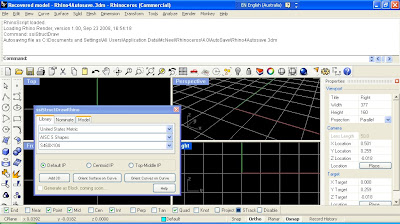
Once the installer has been downloaded and run on your computer, start Rhino and run the command ggStructDraw.  This will bring up the catalogue dialog (shown in the screen capture below) if it is not already visible.  This dialog can be docked in position, or float on your screen whereever is acceptable.

The radio buttons allow the user to specify the insertion point for the section, which will adjust how the section shape will relate to the points the user specified points when adding the structural shapes.  The default IP will generally match be the section centroid, except for asymetric shapes such as channels.  Top-Middle will orient the section shape below the insertion points.


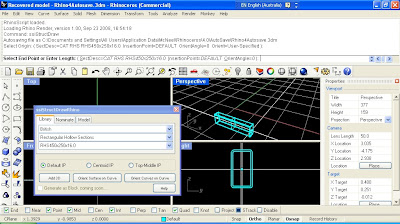
We will look at adding straight extruded sections initially.  By clicking on the Add 3D button, the plug-in command ggStructDrawElement is run.  The user can now select the first point defining the straight line along which the section will be extruded.


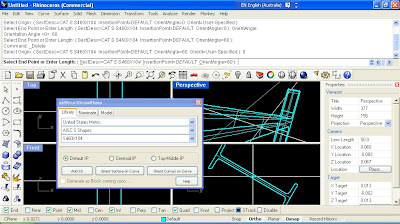
After selecting the first insertion point, the user is prompted for a second.  The length of the extrusion may be specifed by tpying in the number, and then the second selection point will specify the direction. Before specifying the end point of the extrusion, the user can specify if they wish to specify the section direction point, and the orientation angle in plane for the cross section to be rotated (in degrees).  By hitting ENTER when the command completes, it will be repeated.  If your desired section shape is replaced (at random) with the SSI logo, you either need to rerun the command, or request a free trial license for the plug-in by running the command  ggZZLicenseRequest .


Note in the plug-in dialog box, a Nominate tab is available as an alternative for the pull-down menus of the libary catalogue.  A description of the section shape can be entered as a string, in a format consistent with that adopted in Oasys GSA.  GSA contains a wizard for creating these shapes, here's an example : STD CH(m) 0.5 0.3 2.E-002 4.E-002  .  If you don't have GSA (a trial version can be downloaded), the online help describing this is here.

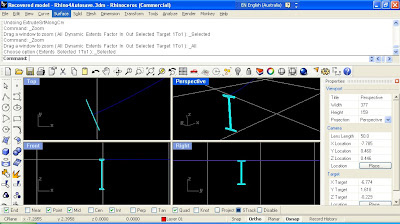
The plug-in also allows users to add a single face surface, or a perimeter curve of the section shape to the rhino document.  The command ggStructDrawSect will be executed from the other two buttons on the dialog, which will prompt the user to select an existing curve to orient the section shape on, and then for a point on that curve.  For this example I have sketched a free form curve, and have oriented a I shape on the start of the curve.

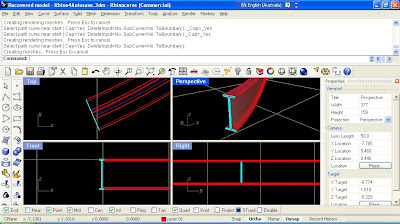
Once the section has been added to the document, it can be used as input to other Rhino commands.  For this example, I've extruded the surface along the curve by using the command ExtrudeSrfAlongCrv .  The images below show the solid resulting from this operation.

All suggestions for improvements for this plug-in gratefully received.  Current thoughts include allowing section specification consistent with other engineering programs, adding more sections (including other countries), and automating process such as section extrusion one existing curve.  Please let me know any other ideas and suggestions.